 |
Home |  |
Using DataLoad | |
Macro Loads |  |
Browser Control | |
Forms Playback | |
Scripting | |
Problems |  |

Load Control enables DataLoad to monitor the progress of the target application during the load. This means keystrokes and mouse clicks are only sent when the application is ready to receive them. Without Load Control the progress of the load is controlled by fixed time delays and these make the load speed sub-optimal; Load Control enables DataLoad to send keystrokes, data and mouse clicks as soon as the target application is ready, thus the load always runs as fast as possible.
 Furthermore, DataLoad will continually adapt to the changing performance of the target application and wait while slower actions are performed. This may be when the application is performing some action which is always slow or when the application becomes unexpectedly slow, for example because of temporary network issues. DataLoad will use Load Control regardless of whether data is being sent using keystrokes or copy & paste; it will also use Load Control when mouse clicks are sent using the *ml, *mr and *dl commands. Load Control is compatible with all target applications, including native Windows applications and Java applications, such as Oracle E-Business Suite's core forms. Load Control can also be used in combination with Browser Control and DataLoad will automatically use the best load technology for each cell in the load.
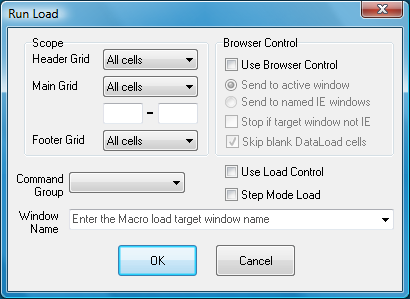
To use Load Control a normal Macro load should be created and when the load is run the "Use Load Control" checkbox should be ticked on the Run Load window. No other changes are required. The fastest and most reliable loads are those where data is sent as keystrokes rather than using copy & paste, thus the former is recommended but both are fully supported.
When Load Control is enabled most Delays other than "Window is Activated" and "Hourglass check" can be set to 0 and this should include all Standard and Advanced Delays. All *SL cell delays can also normally be removed from loads. Most delays can normally be removed or set to 0 but delays may still be required to make DataLoad wait when the target application is opening menus or a new form or window. Removing delays changes the Macro load from a time controlled load to a Load Control managed load and performance will be maximised.
Note: Load Control is not available in the freeware DataLoad Classic.